Collect Donations with Event Registration
The Ticket Questions / Sessions / Add-Ons
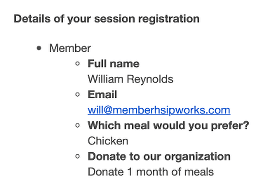
feature will make it easy for your members to make a donation when they
register for an event. You can offer several donation amount options
and include their selection in the event registration confirmation
email.
Where to Setup Event Add-Ons
- Go to MembershipWorks > Event List and click on the event.
- Click the Ticketing link at the top.
- Click on an existing ticket or click on + Add Event Ticket.
- Click the Questions / Sessions / Add-Ons link at the top.

- Under Additional questions to include for each of this ticket added to cart, click on Add Question / Session / Add-on Per Ticket

- Next to Type, select Select a Session / Add-On from the dropdown

How to Setup Your Donations
- After step 6 above, click Setup Session / Add-Ons
- Click + Add Session / Add-On
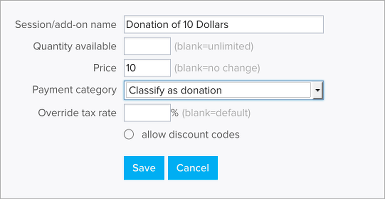
- Give your donation option a name
- Set a price to the donation amount
- Classify the payment as a donation
- If you need to override the default tax rate you can set the percentage under Override tax rate. For example of you are charging a tax for the tickets but donations are tax free you can set Override tax rate to “0”.
- Click Save
- Repeat for each donation option you’d like to offer
Once all of your donation options are created you can add a Select a Session / Add-On question and offer these options with the ticket. For example you can create the question “Donate to our organization” and then offer the different donation amounts you’ve set up. If the donation is optional, you should set “Required” as “No” for that question, that way registrants who do not wish to donate can skip the question.

How to Create a List of Donors from the Event
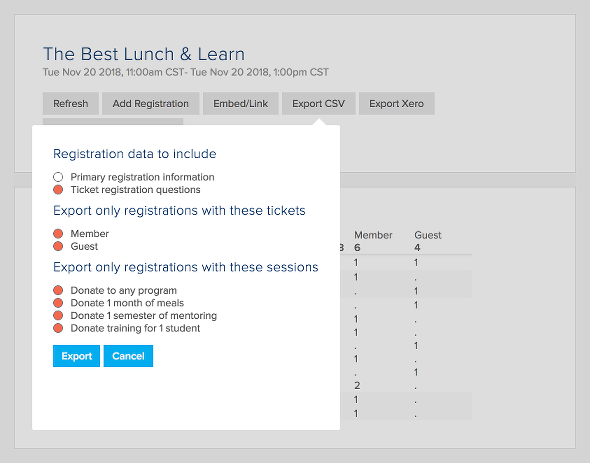
- Go to the Dashboard tab of the event
- Click Export to CSV
- Uncheck “Primary registration information”
- Select the donations under “Export only registrations with these sessions”
- Click Export
Event Confirmation Email
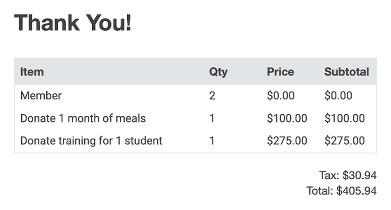
To have the confirmation email include all the information associated with each ticket you can use the tag [tqn].