Billing Options
Billing options define how your members can pay for their membership. Once you have created the membership level, you will need to create the billing options for the level. If no billing options are created, then the membership level is free.

Click on "Add Billing Option" to create a new billing option. You can create as many billing options as you need, but note that your conversion rates may actually be lower if you offer too many choices to your users.
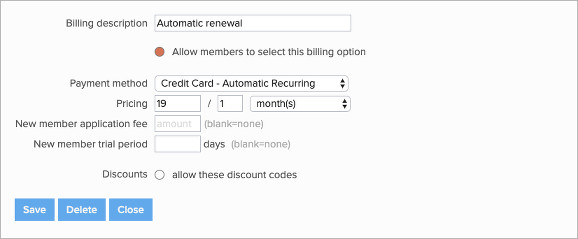
Billing Option Settings
You first need to provide a description for the billing option, this will be what is shown to the member so it should clearly describe how they are paying when they select this option. Below that you will see the following settings:
Allow members to select this billing option
If this setting is disabled, only the administrator can assign this billing option to the member. This can be used for private billing options - for example if you allow some members to pay by check but do not want this option shown on the website. Or this could be used for grandfathered pricing for the membership level that is no longer offered to new members.
All billing options with this setting enabled will be available for both your new and existing members to choose from. Billing options with this setting disabled will only be available to the administrator and members who are currently on this billing option.
Payment type
You can select the following billing types:
- Credit Card - Automatic Recurring. In this case the member's credit card information is stored with your payment processor, and the card is charged automatically each billing period.
- Credit Card - Online. In this case the member's credit card will be charged for the current payment, but the information is not stored. The member would have to sign in each billing period to make a payment. We do not recommend using this billing type if the billing period is short - for example if it is monthly - as it create a big burden for the member to sign in each month to make a payment.
- Offline. With Offline billing, you can offer your members the ability to mail in a check, make payments in person, etc. You will need to provide a short paragraph of payment instructions so the member has the instructions on how to make a payment. For these members, the administrator will need to enter payments and update the renewal date manually in the member's account after receiving the payment. Note that these members are considered past due until the payment is received.
Note that you cannot change the billing type for an existing billing option.
Pricing and interval
This is the price for the billing option, and you can specify monthly, yearly and one-time intervals. One-time billing would be for life-time, once paid the member would be considered a member indefinitely - there is no membership expiration date.
New member application fee
If set, this amount will be added to the first payment for new members.
New member trial period
If set, new members will receive this number of days of membership free. For example, if the member is signing up on Jan 1 and the trial period is 5 days, their membership through Jan 6 is free. Billing for the different payment methods is as follows:
- Credit Card - Automatic Recurring. The member has to provide their credit card information, and automatic billing starts when the trial period ends.
- Credit Card - Online. The member does not have to provide a credit card to sign up. The member can sign in and make a membership payment before the trial ends. Please setup renewal notices to remind the member to sign in to make a payment.
- Offline. The member's renewal date will be set to the end of the trial period. Please setup renewal notices to remind the member to sign in to make a payment.
Note that you cannot set a trial period for automatic recurring billing when you have a fixed anniversary year because it is not possible to schedule a payment at the end of the trial period when it does not fall on the fixed anniversary date.
Discounts
You can enable discount codes to be used for the billing option. If you enable this setting, click on each discount code that can be used with this billing option. Enabled discount codes will have a blue background.
Note that discount codes only apply to the current payment due for the member. Discount codes do not apply to future payments/periods. So if the billing option is automatic recurring, only the first payment would be discounted, future automatic payments would be setup for the regular billing amount.Allow members to request/generate invoice
This setting is for offline billing options only. If you enable this option, members can opt to generate an invoice when selecting an offline billing option and have that invoice emailed to them. Before enabling this option, please read through the following carefully on how invoice billing differs from the default dynamic billing:
Invoices are "static" so once an invoice is generated it will be fixed to the membership dues at the time the invoice is generated. As a consequence the member can no longer upgrade/downgrade their membership, change their membership add-ons or change their billing option until the invoice is paid.
In addition, dynamic past due period billing calculations will no longer apply - past due charges that have incurred at the time of the invoice’s creation will be included when the invoice is created. If the member generates the invoice before they are past due, the invoice will not change to include or forgive the past due period if the invoice is still not paid after the member goes past due. However if you have set a late payment fee for the membership level, the late payment fee will be setup in the invoice so members will be charged the corresponding late fee automatically if they pay the invoice late.
Members cannot update or remove the invoice once generated, an admin would need to take action.
After the invoice is generated the member can pay for the invoice by credit card. If you've setup the direct payment link for invoices, it will also be possible for anyone with the invoice link to pay for the invoice using a credit card.
Sorting Billing Options
You can drag and drop the billing options on the list to re-order them to your needs.
Deleting Billing Options
When you delete a billing option, any members currently on that billing option will be reverted to the administrative "Unassigned/Manual Billing" option (see below).
Unassigned/Manual Billing
Manual billing is an administrator only billing option. In other words, members cannot select Manual Billing themselves; members who are on Manual Billing will be prompted to select one of the other billing options when they sign in their account. Manual Billing is also the default billing option for members that you import.
Changing Prices For Existing Billing Options
When you change prices on an existing billing option, all current members will see the new prices when they renew next. There is no pro-rating of the current membership expiration for the current members. For Automatic Recurring billing, we will migrate their billing information with your payment processor so they will be billed the correct amount on their next renewal.
If you wish to keep current members on the old pricing, instead of
changing the pricing, first disable the setting for "Allow members to
select this billing option" under this billing option. Then create a new
billing option with the new pricing. This way, current members will
continue to be billed at the old pricing but new members can only select
the new pricing/billing option.